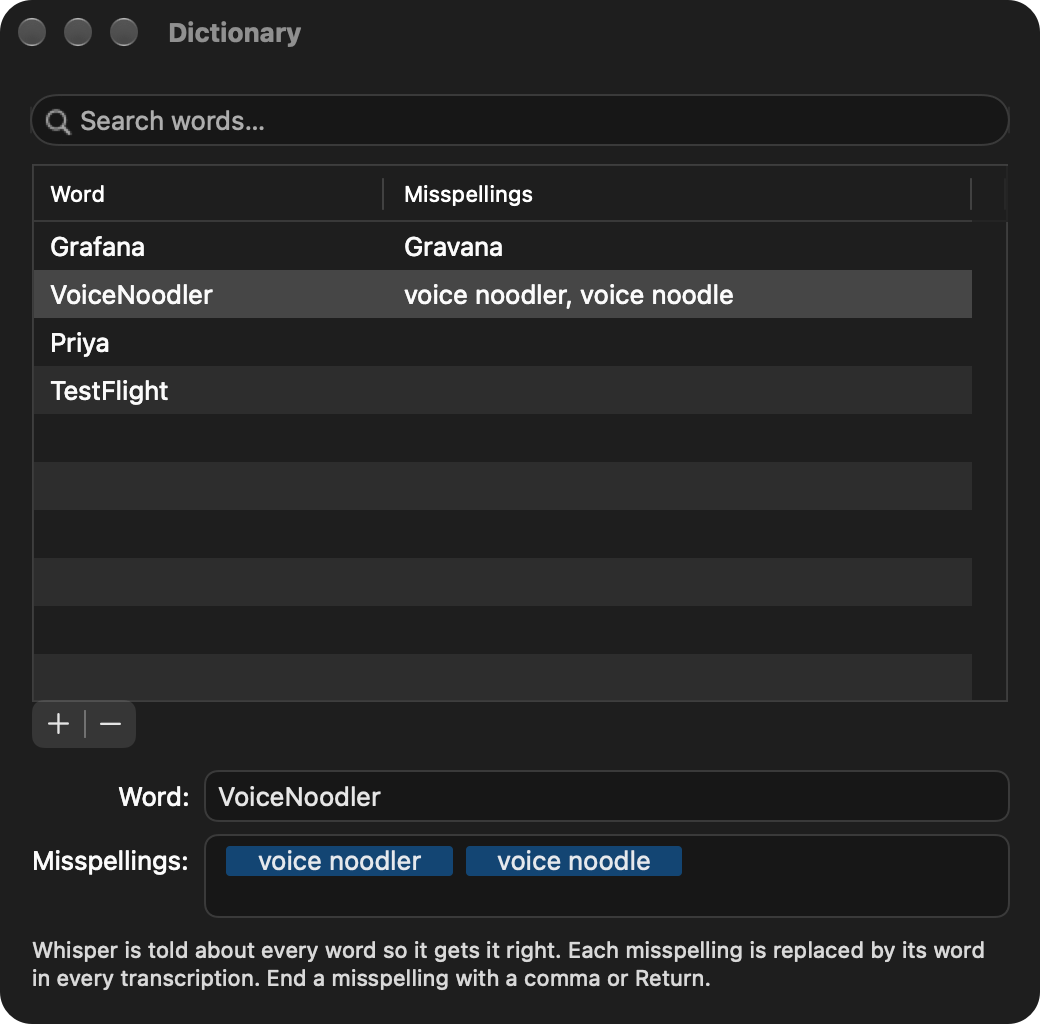
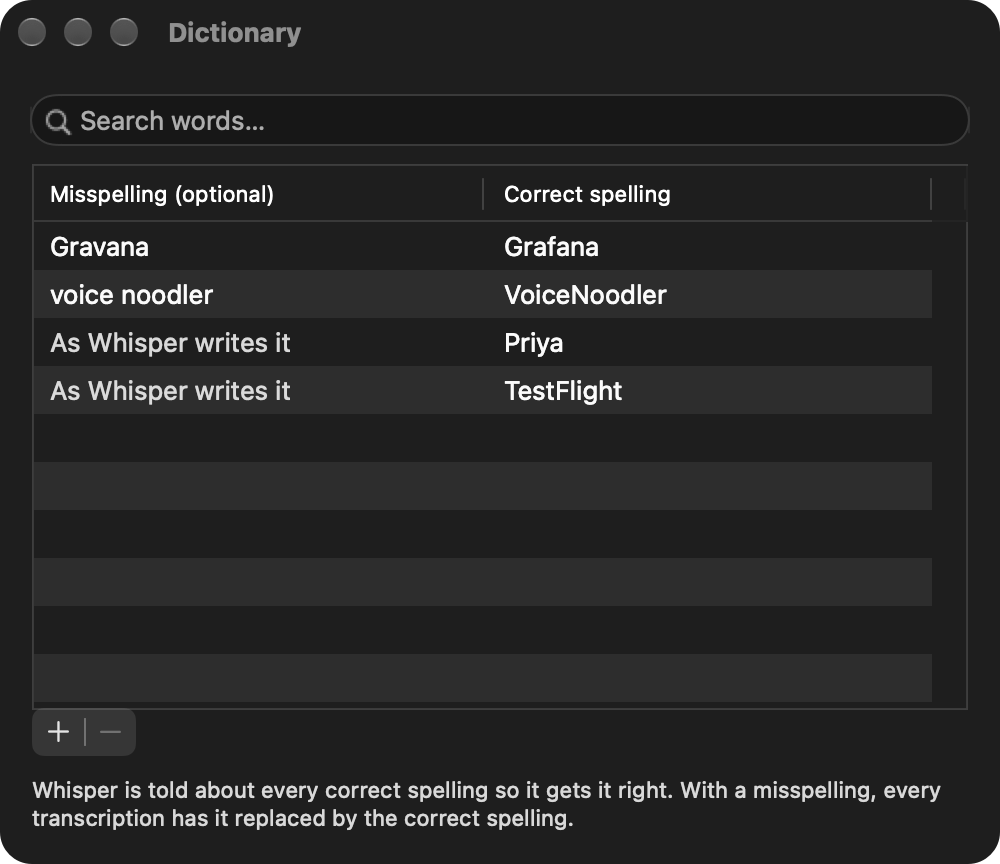
This release tidies up the dictionary: each word now has one entry, with every way the transcription gets it wrong listed next to it.
Improved
Several misspellings per word. A word the transcription gets wrong in more than one way used to take a row for each misspelling, with the word typed again every time. Now a word has one entry with all its misspellings. In the Dictionary window (Dictionary… in the menu bar menu, or Edit Dictionary… in Settings > Transcription), select a word and type its misspellings under it, ending each one with a comma or Return. Your existing dictionary is grouped by word for you, and every change is saved as you make it.
A misspelling that already belongs to another word, or that is a word in your dictionary itself, isn't added, and the reason shows in red. So a misspelling can no longer replace another word you added.
This release lets you paste a text you use often by saying a few words, and from now on VoiceNoodler tells you what each update changed.
New
Paste a text by saying its trigger
Some text is awkward to dictate and tedious to type again and again: an email address, a phone number, a postal address, a sign-off of a few lines.
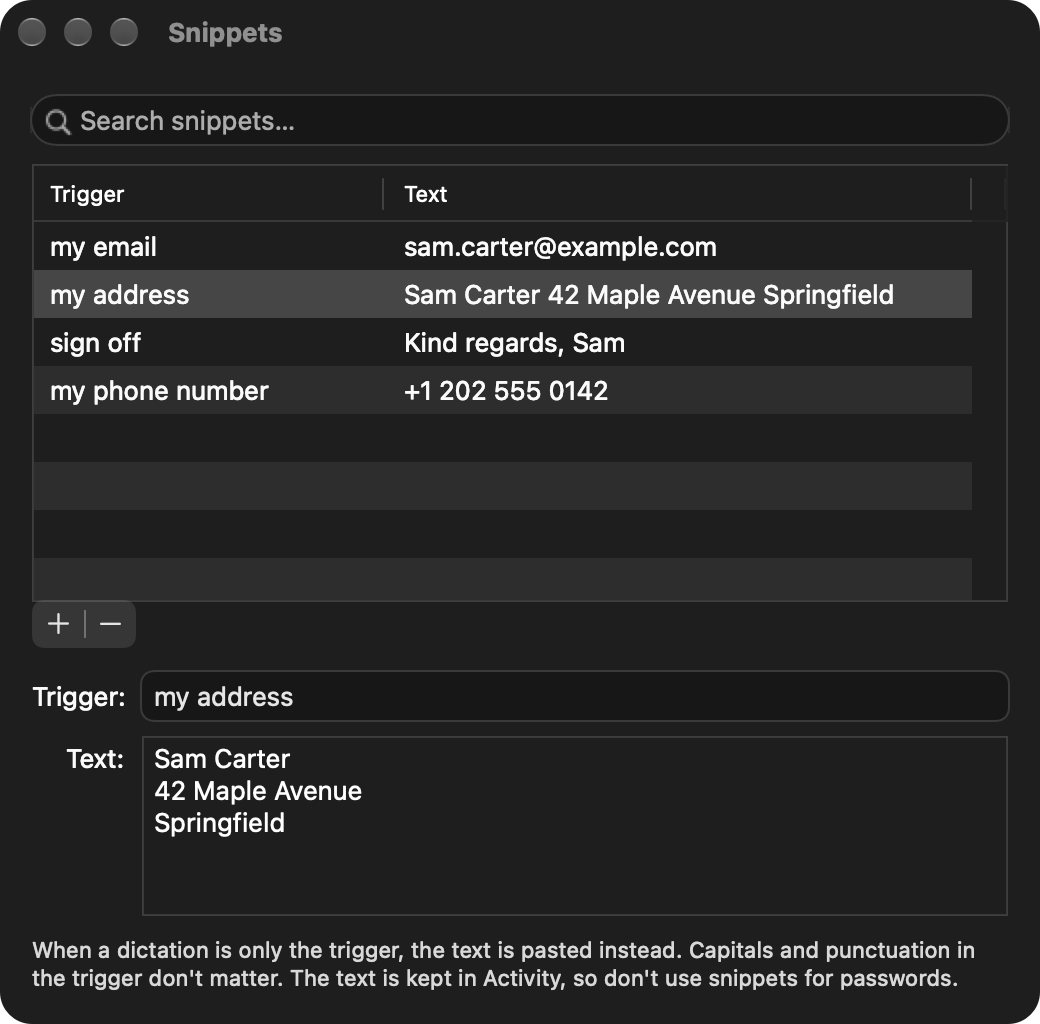
A snippet is a trigger and a text. When a dictation is only the trigger, VoiceNoodler pastes the text in its place, exactly as you entered it, with all its lines. Capitals, punctuation and spaces don't matter, so the trigger "my email" also matches "My e-mail."; said inside a longer sentence, the trigger is pasted as you spoke it.
Add your snippets in the Snippets window: choose Snippets… in the menu bar menu, or Edit Snippets… in Settings > Transcription. The text is kept in Activity like any dictation, so don't use snippets for passwords.
See what's new after an update
An update used to install itself and relaunch without a word, so a new feature or a fix was something you came across by accident, if at all.
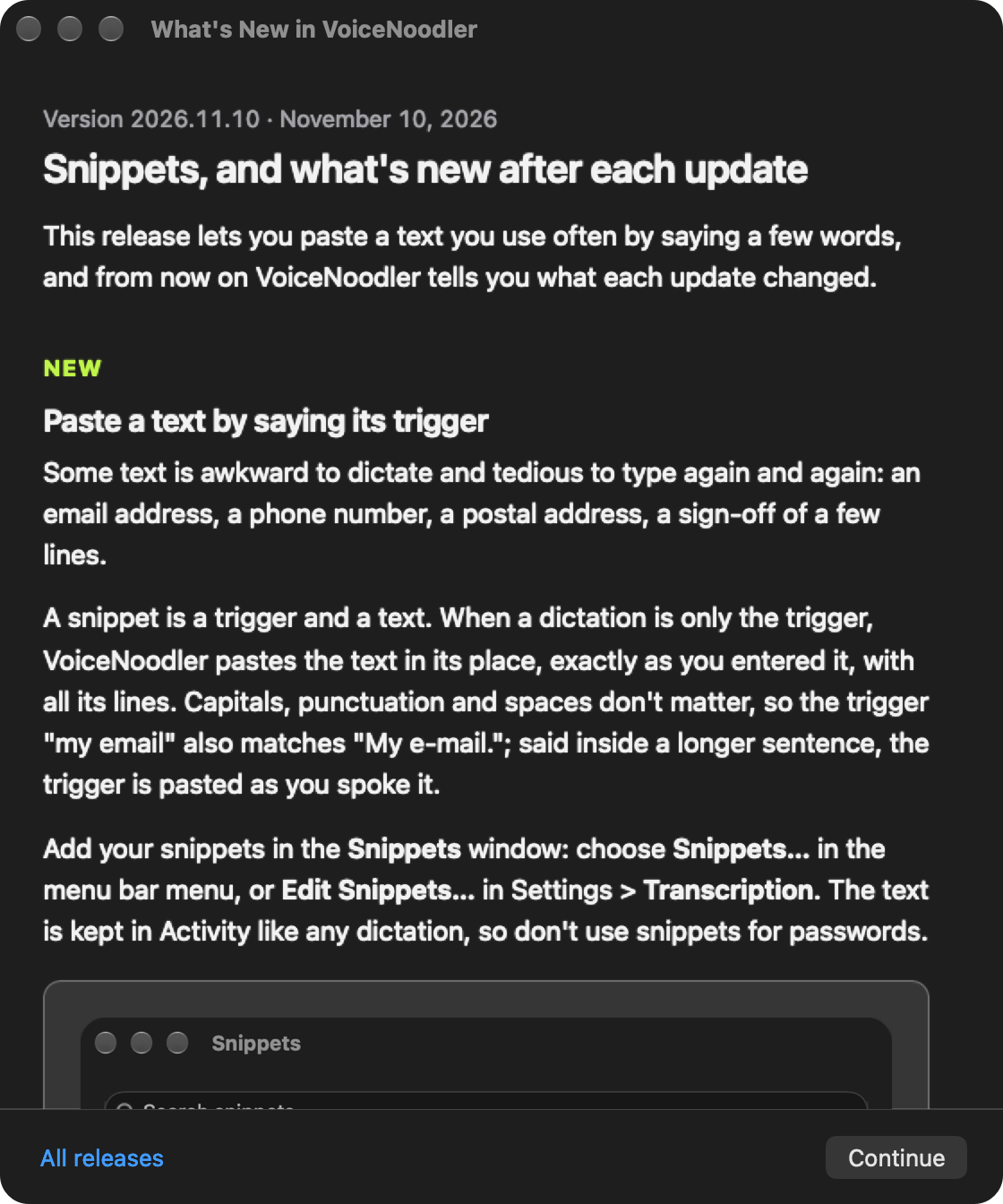
Now, the first time VoiceNoodler starts after an update, the What's New in VoiceNoodler window shows what changed since the version you had, newest first: what each new feature is for and where to find it, then the improvements and the fixes. You can keep dictating while it's open, and Continue closes it. It appears once per update. The notes come from the website, so without an internet connection the window waits until the next start.
To read them again, choose What's New… in the menu bar menu. All releases opens the changelog on the website, where every release has its own page.
Improved
The app icon is simpler: flat lime bars over a wave on a dark tile, without the glowing rim.
Fixed
Activity no longer opens with nothing selected, or on the dictation you selected last time: it opens on your newest dictation.
Quiet while you talk, and headphones that keep their sound
This release silences other audio while you dictate, and stops VoiceNoodler from turning Bluetooth headphones into a phone call.
New
Silence other audio while dictating
Music or a video kept playing while you talked, so you talked over it.
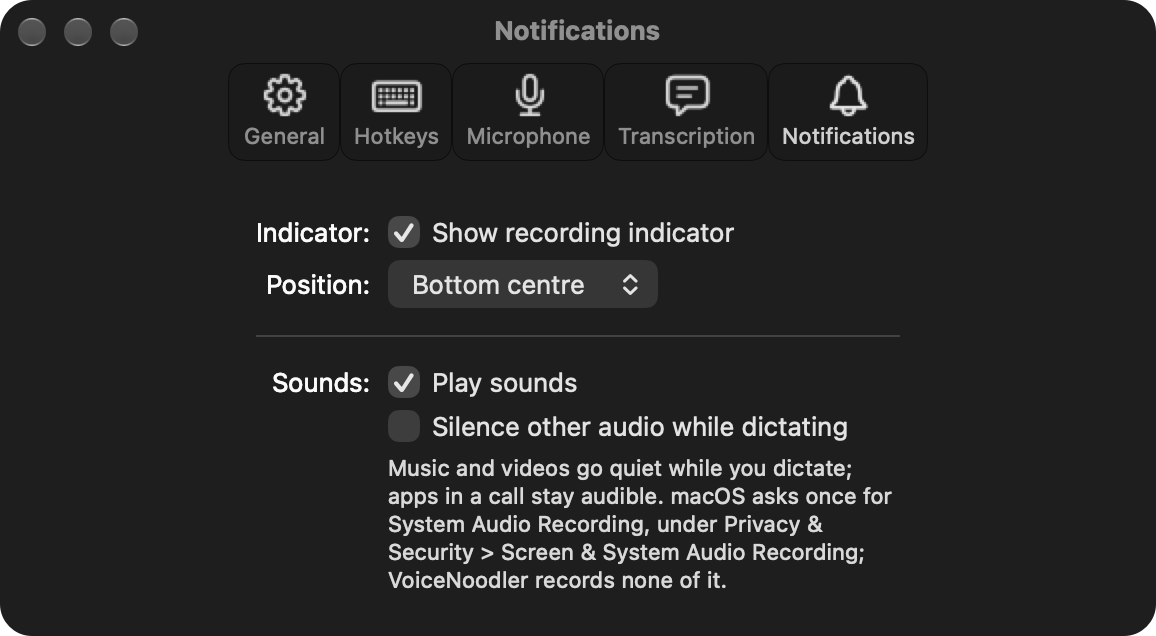
Turn on Silence other audio while dictating in Settings > Notifications, and every other app goes quiet from the moment you press the hotkey until VoiceNoodler's end sound has played, while its own sounds stay audible. An app that has your microphone open, such as a video call, stays audible, so you can dictate into its chat. macOS asks once for System Audio Recording; it needs macOS 14.2 or later.
Bluetooth headphones keep their quality
With VoiceNoodler running, music on Bluetooth headphones such as AirPods dropped to phone-call quality, even while you weren't dictating.
Now they keep their quality whenever you're not dictating. When your headphones are the Mac's microphone, System default records from your wired or built-in microphone instead, so they keep it while you dictate too, and Settings > Microphone shows which one is used. If you do choose a Bluetooth microphone, the start sound waits until it can hear you.
Improved
A recording starts sooner on a wired, USB or built-in microphone, and the recording indicator appears before the start sound.
When the microphone that stands in for your Bluetooth headphones hears nothing, the menu bar menu says so and takes you to Settings > Microphone.
This release puts your recent dictations in the menu bar menu.
New
Recent dictations in the menu
Getting a dictation back meant opening Activity, finding it, selecting it and clicking Copy, mostly for the one you had just made.
Activity in the menu bar menu now lists your five newest dictations, each with the app it went to. Click one to copy its text; hover over it to read more of it. Open Activity… above the list opens the window. To keep them out of the menu, turn off Show recent dictations in the menu bar in Settings > General.
Improved
Dictionary… is back in the menu bar menu, so your words are one click away.
VoiceNoodler's windows take the usual shortcuts: ⌘W closes a window, ⌘M minimises it, ⌘F searches in Activity and ⌘, opens Settings.
Fixed
With a clipboard shared with a virtual machine, your earlier copy no longer gets replaced by the dictation a second after it was pasted.
This release offers the faster engine to new users during the setup, when it covers the languages they speak.
New
The setup recommends Parakeet Ultra
Parakeet Ultra was something you had to find in Settings, so a new user started with the slower engine without knowing there was a choice.
The guided setup now asks for your languages first and then offers the model that fits them. When Parakeet covers every language you selected, it is recommended and selected; a Whisper model comes along for the languages it doesn't cover. If you already use VoiceNoodler, your engine stays as it is.
Improved
The setup's test dictation shows which engine transcribed it and how long that took.
This release adds a second transcription engine, many times faster than Whisper for 25 European languages.
New
Parakeet Ultra
Even a one-word dictation took about a second to appear, because Whisper works through half a minute of audio for every piece.
Parakeet Ultra runs on your Mac's Neural Engine and pastes a typical dictation in well under a tenth of a second, about as accurately as Whisper. Choose it in the Model menu of Settings > Transcription; it downloads once (603 MB). It covers 25 European languages: when you select a language outside them, VoiceNoodler uses your Whisper model and says so under the menu. Parakeet doesn't use your dictionary words while transcribing, but their corrections still apply.
VoiceNoodler no longer stops responding after the Mac slept and a microphone went away meanwhile, as when you unplug a USB microphone and close the lid.
This release lets you use the hotkeys you actually press.
New
Hotkey combinations
Some combinations couldn't be recorded as a hotkey: Fn with an F-key was taken for the F-key alone, and two modifiers together, such as ⌃⌥, weren't accepted at all.
Now you get exactly what you press. F15 and Fn+F15 are two different hotkeys, so push to talk and persistent recording can share one key, and a combination of modifiers alone works too: as push to talk, ⌃⌥ records while both are held, and a shortcut such as ⌃⌥T still works in other apps. Record them in Settings > Hotkeys; the hotkeys you already have keep working.
Fixed
Black dots and lines no longer flash around the selected tab the first time Settings opens.
This release makes sure a dictation lands where you are typing, and that your clipboard is yours again afterwards.
New
The paste is checked
In some apps, Slack among them, a dictation sometimes pasted what you had copied earlier instead of what you said: the app took a moment to paste, and by then your earlier copy was already back on the clipboard.
VoiceNoodler now watches the text field and sees your text arrive before it gives the clipboard back. When there is nowhere to type, nothing is pasted and the error sound plays; the dictation is kept in Activity, where you can copy it.
Improved
Whatever you copied before dictating is on your clipboard again afterwards, every time. A dictation that couldn't be pasted waits in Activity instead of on your clipboard.
Clipboard managers skip the dictation, so it doesn't fill up their history.
A dictation that lost a piece, or its microphone, is no longer pasted half: it is kept in Activity.
This release keeps your recent dictations, so a text that went to the wrong place is never lost.
New
Activity
Once a dictation was pasted it was gone: when it landed in the wrong window, or you wanted yesterday's text again, there was no way back.
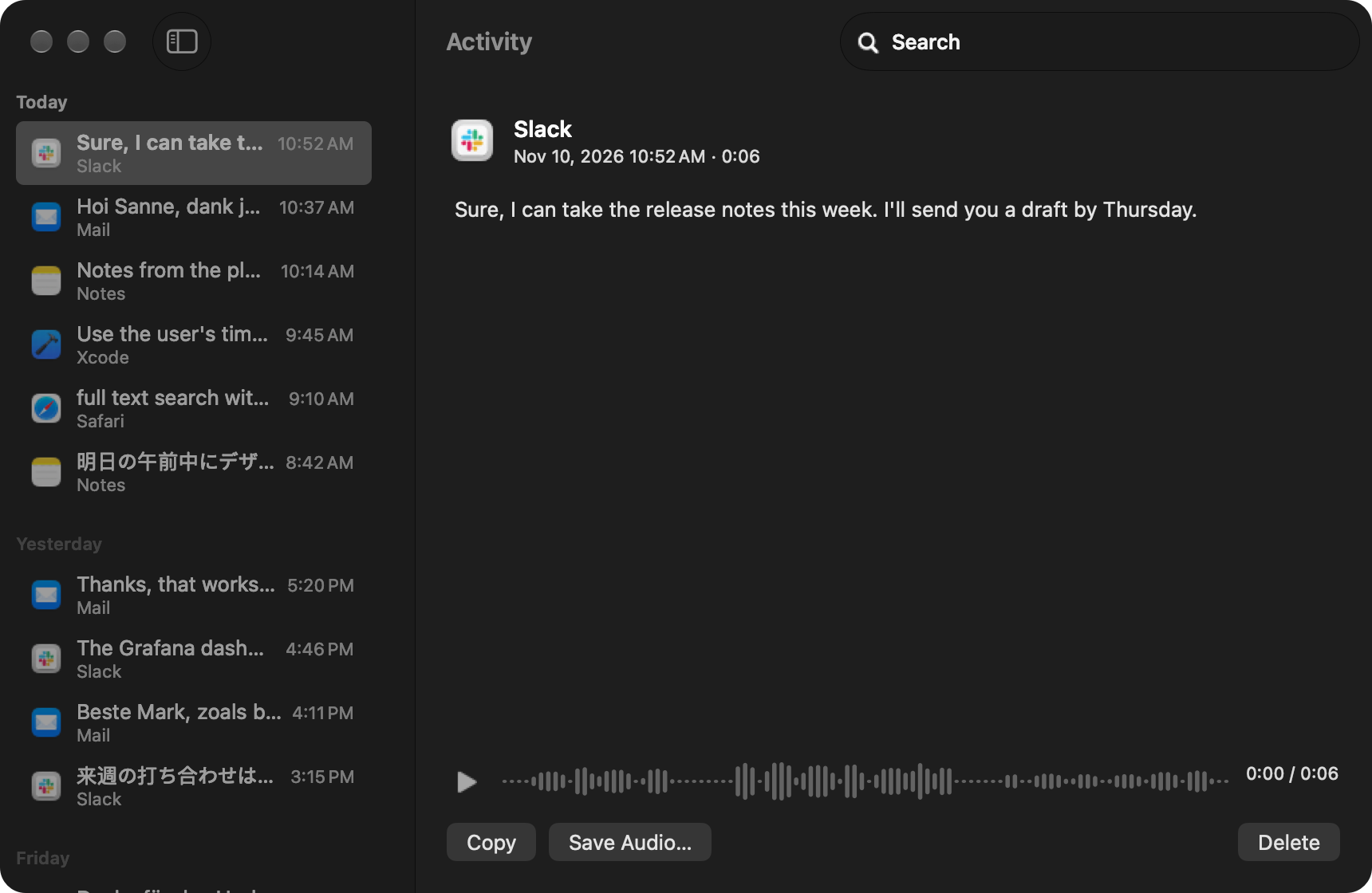
Choose Activity… in the menu bar menu to see your dictations of the last days, newest first and grouped by day, with the app each one went to. Select one to read the whole text, see the original transcription when the cleanup or your dictionary changed it, and listen to the recording; copy the text, save the audio or delete it, and search everything you dictated. Settings > General sets how long Activity keeps them: off, a day, a week or 30 days.
Improved
Select several dictations in Activity with ⌘-click or ⇧-click and delete them together.
Fixed
Text fields in VoiceNoodler's windows take ⌘C, ⌘V, ⌘X and ⌘A.
This release can tidy a dictation before it is pasted, without sending anything off your Mac.
New
Clean up with AI
What you say isn't what you would write: an "um", a word said twice, or "at three, no, at four" all end up in the text, and you fix them by hand afterwards.
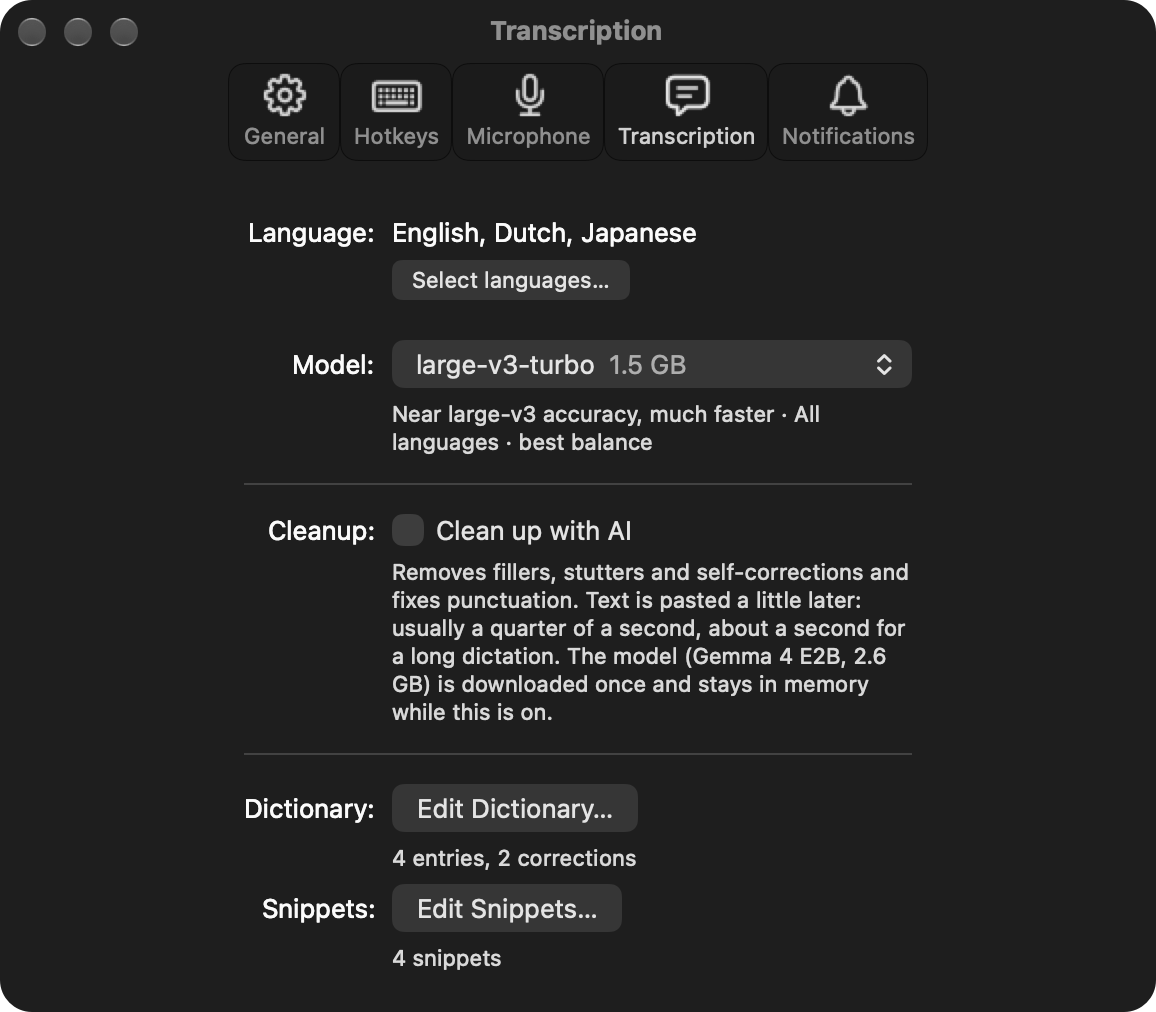
Turn on Clean up with AI in Settings > Transcription and a local language model removes fillers, stutters and the words you took back when you corrected yourself, and fixes punctuation and capitalisation, before the text is pasted. It changes nothing else: not your words, their order or the language. The model downloads once and runs on your Mac; when it fails or takes too long, the text is pasted as transcribed.
This release takes away the limits of a long dictation.
New
Recordings without a maximum length
A long dictation used to be transcribed in one go after you stopped: the longer you talked, the longer you waited, and the more of the text could go missing.
Now a recording has no maximum length. While you talk, VoiceNoodler transcribes it piece by piece in the background, cutting at the pauses between your sentences, so the text is pasted soon after you stop, however long you went on. A piece that fails is tried again while you keep talking.
A guided start, your languages, and a second way to record
This release rebuilds the first start and Settings, lets you dictate in several languages, and adds a way to record without holding a key.
New
Persistent recording, and Fn as the hotkey
Holding a key for the whole of a long dictation is tiring, and it ties up a hand you may need for something else.
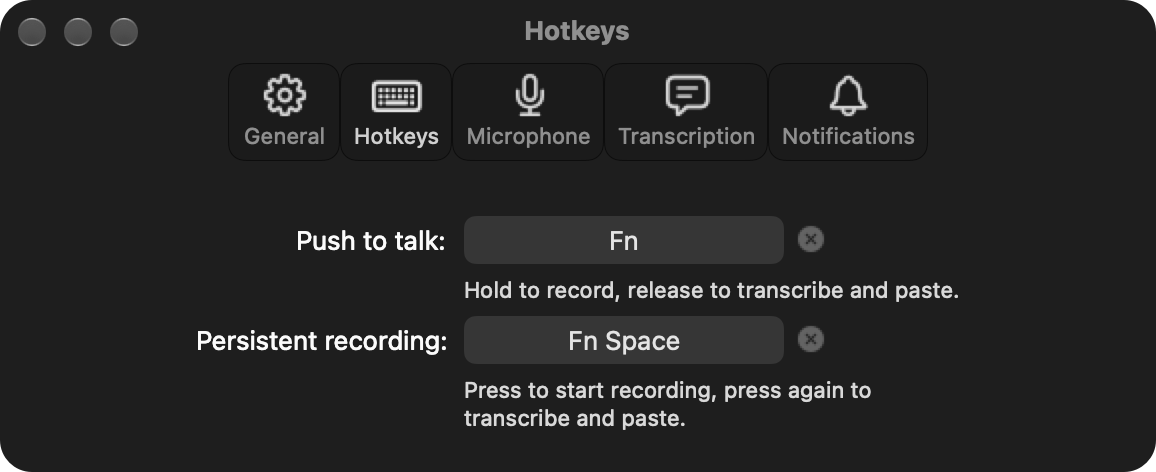
Next to push to talk, which records while you hold its key, there is now persistent recording: press its hotkey once to start and once more to stop. New users get Fn for push to talk and Fn+Space for persistent recording; if you press Space while holding Fn, the recording carries on after you let go. Change both in Settings > Hotkeys; your own push to talk key stays as it was.
Dictate in several languages
You could dictate in one language, or leave the choice to Whisper, which sometimes heard a language you don't speak.
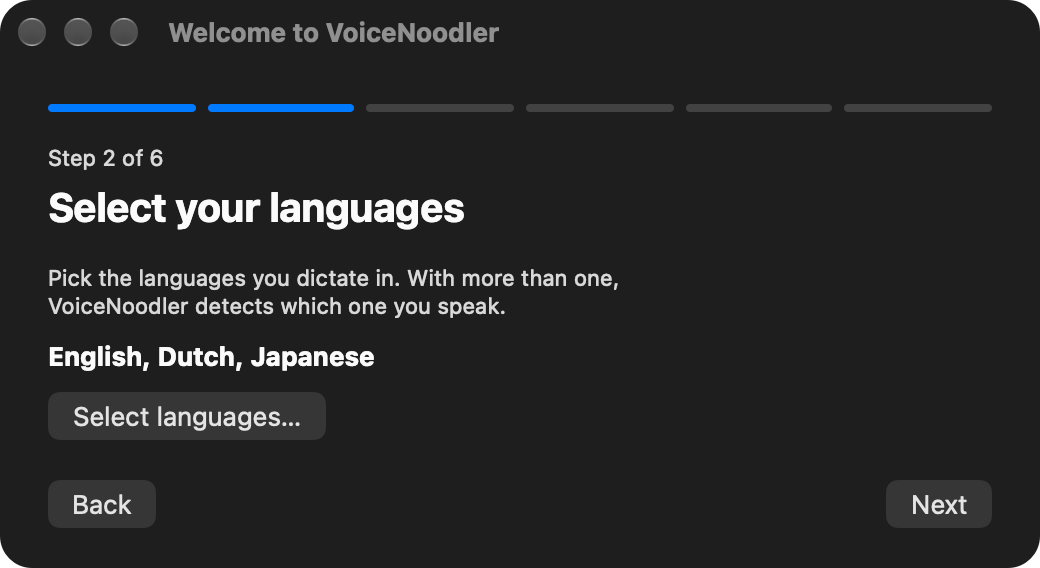
Now you select the languages you dictate in, from every language Whisper knows, and VoiceNoodler detects which of them you are speaking. Select them in Settings > Transcription, or from the language item in the menu bar menu.
A guided setup
A new user got the Settings window and had to work out the rest: which permissions, which model, which key.
The first start is now a guided setup of six steps: the permissions, a model, your microphone, your languages, your hotkeys and a test dictation that shows the text in the window instead of pasting it. When a permission goes missing later, it comes back for that step alone.
See that it is recording
While you held the key, nothing on screen told you that the recording was running, or that it heard you.
A small pill now floats at the bottom of the screen while you record, with bars that move with your voice. Click its × or press Escape to throw the recording away. Settings > Notifications moves it to another place on the screen or turns it off.
Choose your microphone
VoiceNoodler recorded from whatever microphone macOS had chosen.
Choose one in Settings > Microphone, where a meter shows that it hears you, or in the Microphone submenu of the menu bar menu. A microphone that isn't connected falls back to the system's, and is used again once it is back.
Improved
Settings has tabs: General, Hotkeys, Microphone, Transcription and Notifications.
VoiceNoodler has sounds of its own for the start, the end and an error. Turn them off with Play sounds in Settings > Notifications.
The model list is grouped, and every model says what it is good at.
The recording runs on a moment after you let go, so your last word is no longer cut off.
Fixed
A dictation no longer ends with a subtitle credit, such as the name of a broadcaster, that Whisper made up.
A word that is already spelled as in your dictionary is left alone.
This release teaches the app the names and terms it kept getting wrong.
New
Dictionary
Names, product names and jargon came out wrong in the same way every time, and you corrected them by hand after each dictation.
Add them in the Dictionary window: choose Dictionary… in the menu bar menu, or open it from Settings. A word you add is given to Whisper before it transcribes, so it knows how to write it. For a word that still comes out wrong, add the misspelling next to it: every dictation then has it replaced by the correct spelling.
This release turns a set of scripts and helper tools into a single app that you drag to Applications.
New
A hotkey of your own, set in Settings
The key you hold to dictate was set up in a separate tool, with a configuration file.
Now the app listens for the key itself. Open Settings… in the menu bar menu, click the hotkey field and press a key or a combination; a single modifier such as Right Option, the default, works too.
Choose and download a model in the app
Changing the Whisper model meant a script in the terminal.
Settings now lists every Whisper model, from the small and fast ones to the most accurate, with its size. Choose one and it downloads and becomes the model in use.
Updates from the menu bar
A new version meant running the installer again.
The app now checks for a new version when it starts and once a day, and Check for Updates… in the menu bar menu does it at once. An update downloads, replaces the app and starts it again.
Improved
Everything the app needs is inside it: there is nothing else to install, and it opens at login by itself.
Grammar correction by a second model is gone: it made every dictation slower and changed words you had said.
Fixed
A recording of silence no longer pastes a sentence you never said, such as "Thank you."
Typing a long message is slow, and saying it is faster than typing it.
The first version does one thing: hold a key and talk, release it, and what you said is pasted where your cursor is. The speech is transcribed by Whisper on your own Mac, so nothing you say leaves it. It is installed from the terminal and still needs a few other tools next to it.